Follow free turorials on colored pencils, soft-block or eraser carving and color theory.
Return to the Designedly, Kristi home page.

Prepping Photos for Carving Using Adobe Photoshop 6.0
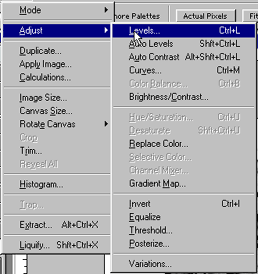
The menus to access the adjustment levels in Adobe Photoshop.

Now, we can adjust the levels by choosing Image > Adjust > Levels (Ctl + L).
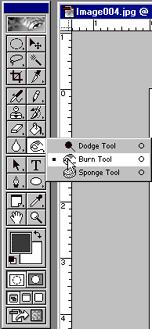
The Adobe Photoshop toolbar with the burn tool selected.

You can use the Burn Tool to darken certain details. Going over it successively will darken areas more.

The Adobe Photoshop tool bar with the dodge tool selected.

You can use the Dodge Tool to lighten certain details. Going over it successively will lighten the areas more.
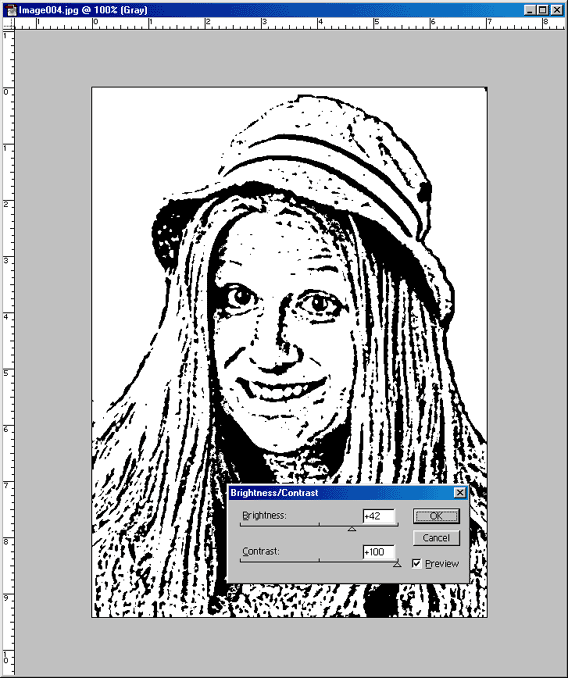
A screen shot of adjusting the brightness and contrast on the black and white  poster edged photograph.

At the end, you need to adjust the contrast all the way up to +100 to remove the grey areas. You can adjust the brightness to bring out or remove features. If you are advanced, you can select certain areas and adjust them separately and then flatten the image at the end.
<Go Back :: Continue >

Carving 101
Prepping Photos for Carving
Color Theory 101
Great handmade journals and blank books for sale now!
 

Home | Sale | New | Classes | Contact | Freebies | About | Tutorials | Gallery | Links | Site Map

Search Query

All contents of this site © Designedly, Kristi
PO Box 2163, Fort Collins, CO 80522-2163
This page was last modified on 04.07.2005